Login Demonstration Video for NorthSouth Registered Students For Free
Watch the step-by-step demonstration video to understand how to log in and access the spelling game platform.
North South Foundation
The Word Packs section by NorthSouth Foundation is designed to help young learners build strong spelling and vocabulary skills through structured, level-based learning. Learners can explore word packs, participate in interactive quizzes, and track their learning progress through a child-friendly interface.
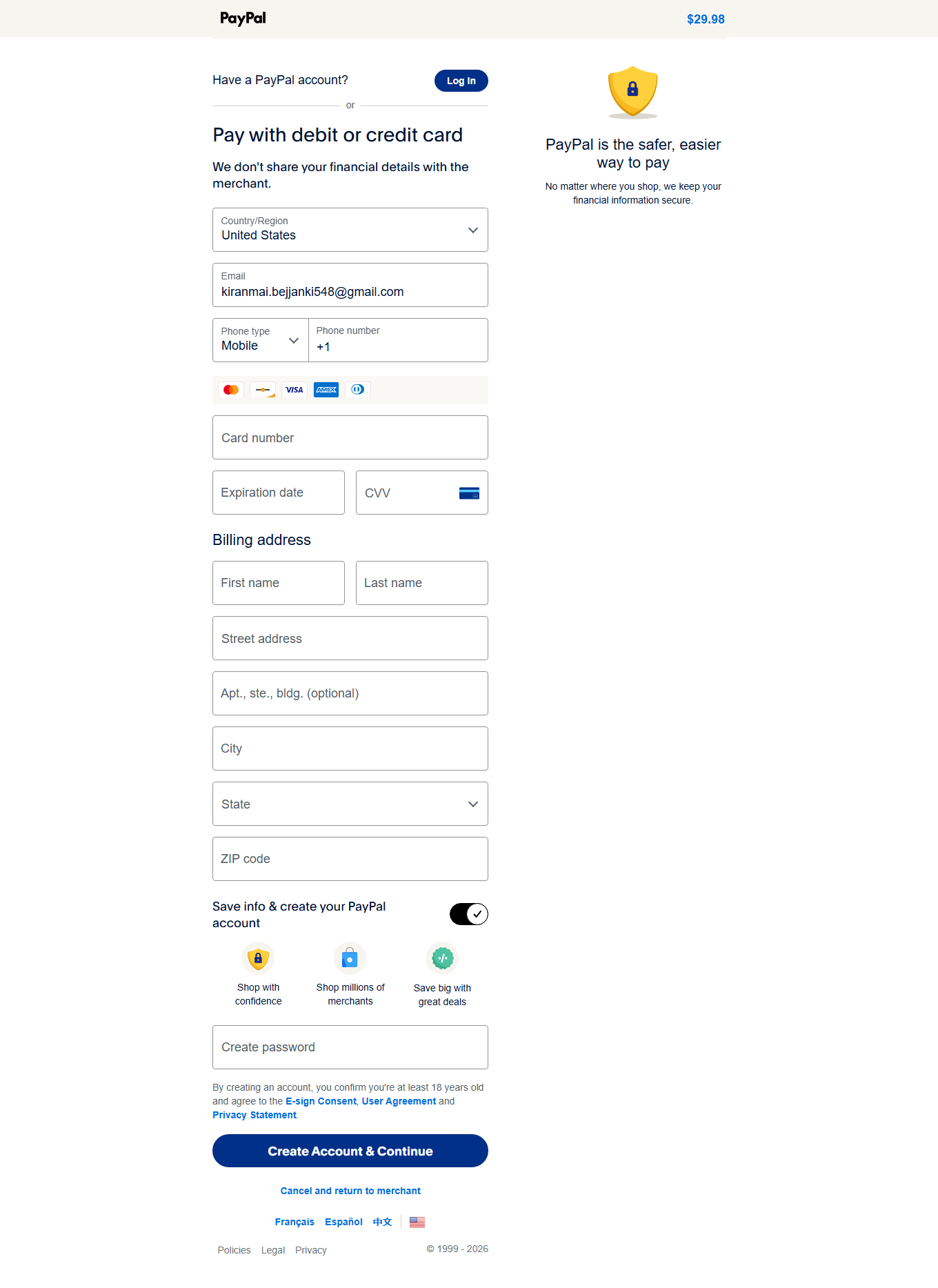
When you open the Spelling application, you will see:
-
A top navigation bar with:
- Login or Sign-up option (top-right corner)
- Home and User Guide links
- A search bar labeled “Register for free to access search”
- Action buttons such as Take a Quiz and Buy Word Packs
- A banner inviting users to Start your journey with Spelling
Login and Registration Guide :
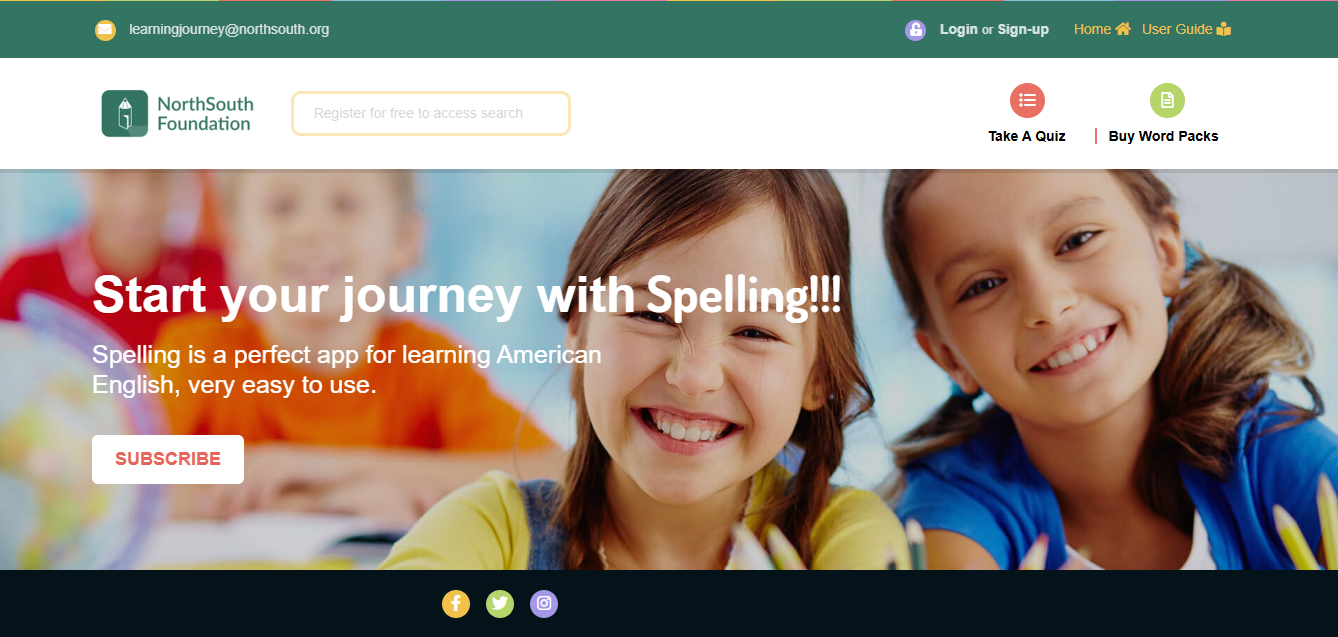
This section explains how users can register and log in to the Spelling application from the home screen.
-
Registration
- Username (unique): Choose a unique username for your account.
- Password: Create a secure password for your account.
- Confirm Password: Confirm your chosen password.
- Email: Enter your email address.
- Mobile Number: Provide your mobile number.
- Promo Code (Optional): If you have a promo code, enter it here.
- SMS Consent: By checking the box below, you give your consent to receive SMS messages.
- I give my consent to receive SMS messages.
- Before proceeding, please make sure to read and agree to our Terms and Conditions and Privacy Policy.
- After submitting your details, you will receive a verification email ([email protected]) or SMS to confirm your account. Please click the verification link in the email or follow the instructions in the SMS to complete the sign-up process.
Note: Your account will be fully activated only after successful verification.
-
Login :
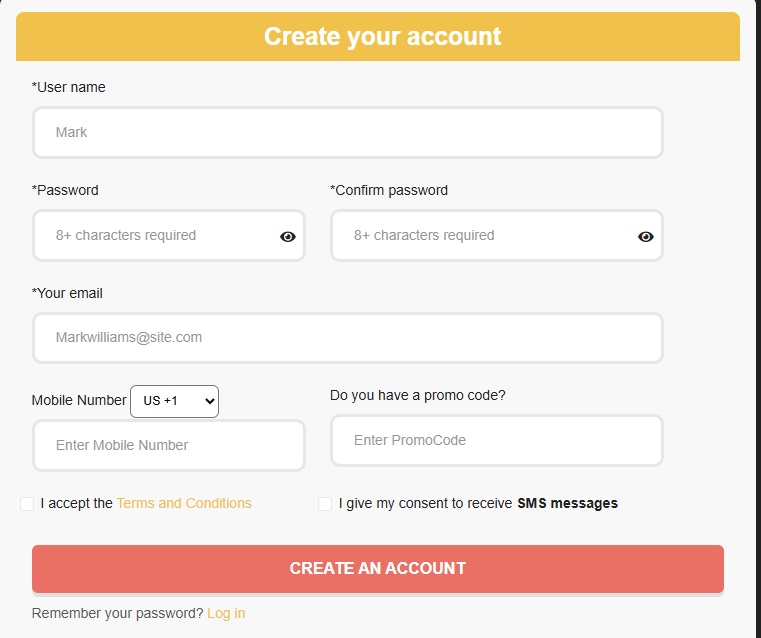
If you already have an account, Login to access personalized features and track your progress.
- Username (unique): This is the username you created during account registration.
- Password: Enter your account password.Click the eye icon to show or hide your password while typing. Click the SIGN IN button to proceed.
If you are a NorthSouth User:
- Check the “NorthSouth Login” checkbox.
- In the Username field, enter your NorthSouth username or student email.
- In the Password field, enter your NorthSouth password.
- Click the “Sign In” button.
Note : If the entered credentials are correct, you will be logged in successfully and redirected to the application.
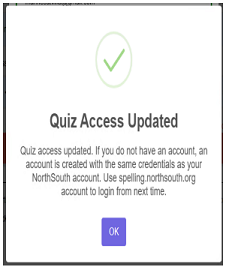
* If you signed in successfully we will get a popup like this.
After login when i go to home page , i will be able to access :
- Search for words
- Take quizzes
- Subscribe or buy word packs
- Track learning progress
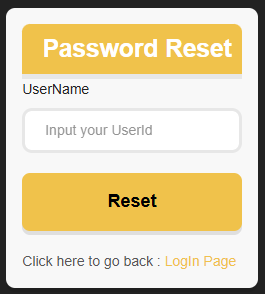
Forgot Password : The Password Reset screen allows users to initiate a password recovery process by entering their registered Username. Upon submission, the system verifies the user and proceeds with the password reset flow.
Take a quiz:
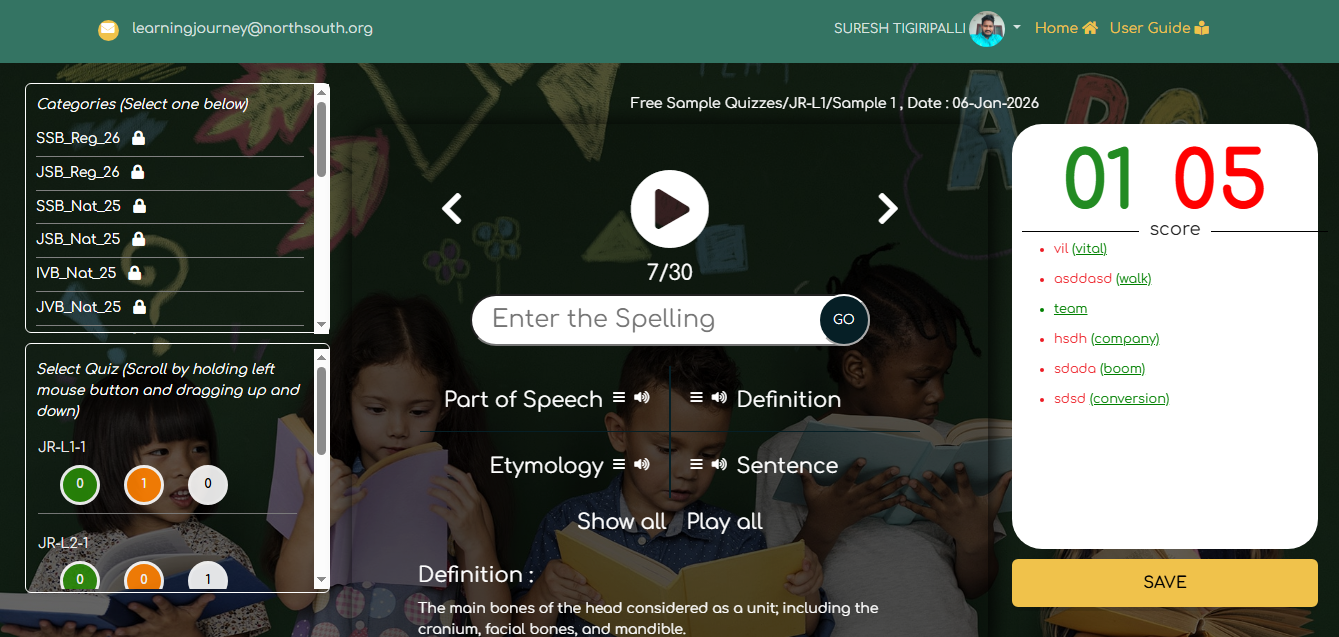
The Take Quiz screen is an interactive learning interface designed to help users practice spelling, vocabulary, and comprehension through structured quizzes. It provides guided navigation, audio assistance, scoring feedback, and progress tracking in real time. This screen is used when a learner actively attempts a quiz.
Header Section:
The Top Bar displays user and navigation information.
- Registered Email: Shows the logged-in user’s email ID.
- User Name & Profile Icon: Indicates the currently logged-in user.
- Home:Navigates back to the dashboard.
- User Guide:Opens help and instructional content.
Quiz Selection Panel:
Used to select a specific quiz within the chosen category.
- Quizzes are listed (e.g., JR-L1-1, JR-L2-1).
-
Each quiz shows:
- Correct answers (Green)
- Wrong answers (Orange)
- Unattempted questions
- Scroll-enabled for browsing multiple quizzes.
Quiz Navigation Controls:
Located in the center of the screen:
- Previous : Go to the previous question.
- Play Button : Plays audio pronunciation of the word.
- Next : Move to the next question.
Answer Input Selection:
- Text Input Field:Labelled "Enter the spelling"
- GO Button:Submits the entered spelling for validation.
Score for the current Quiz (Right):
In the Score Card screen, the quiz results are displayed as follows:
-
If the user-entered answer is correct, the word is highlighted in green.
-
If the user-entered answer is incorrect, the word is highlighted in red, and the correct answer is shown in brackets for reference.
In this screen:
-
Correct answers: 4
-
Incorrect answers: 6
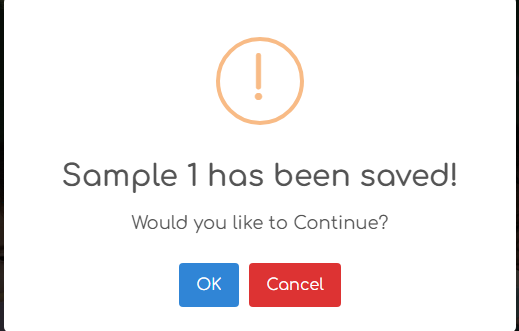
Upon clicking the Save button, the current quiz attempt is stored, and the system redirects the user to the subsequent screen showing the saved quiz information
-
When the user clicks the OK button, the user can continue with the current quiz.
-
When the user clicks the Cancel button, the popup is closed, and the user remains on the same screen without any changes
Show All & Play All :
When the user clicks on Show All, a popup window is displayed showing all available clues related to the selected word.
The Popup includes the following details:
- Definition – Meaning of the word
- Etymology – Origin and historical background of the word
- Parts of Speech – Grammatical category (e.g., noun, verb, etc.)
- Pronunciation – Audio pronunciation (hidden in quiz mode, with play option where applicable)
- Sentence – Example sentence with a blank for the quiz word
- References – Additional references (hidden in quiz mode)
This popup allows learners to review complete word information in one place, helping them better understand the word without leaving the quiz context.
“Play All”- Audio Clues Functionality When the user clicks on the Play All button, the system plays all available audio clues for the selected word in sequence.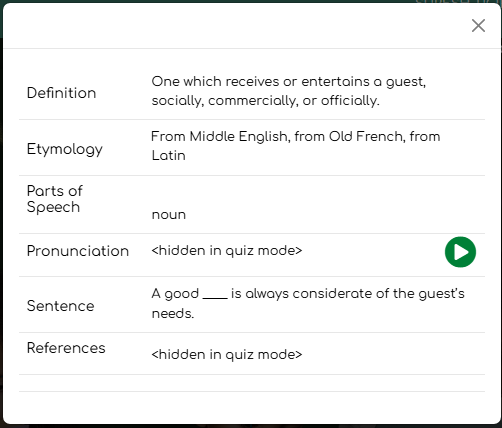
Vocabulary:
This screen is used to conduct online vocabulary tests,displays question by question
Category Selection:
The Category Selection section allows the user to choose the appropriate exam group or level. Only one category can be active at a time. When a category is selected, the system loads the corresponding quizzes. Previously saved progress under that category is automatically retained and restored when the user logs in again.
- Each Quiz shows three indicators with count.
- Green - Completed Quizzes
- Orange - In Progress Quizzes
- White - Not Attempted Quizzes
Central Pannel:
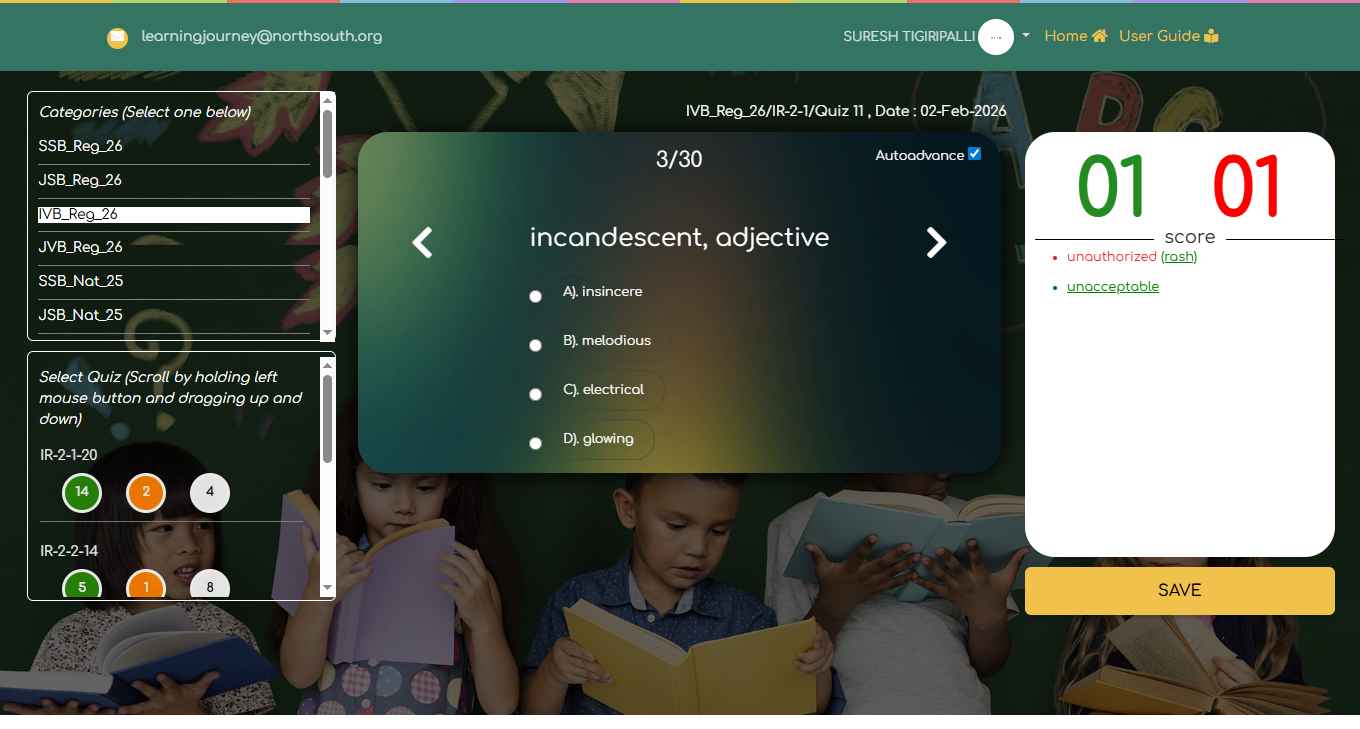
The Central Panel serves as the main working area of the system. It displays the current question number, the vocabulary word, its part of speech, and multiple-choice options. Users select one option at a time. The selected option is temporarily saved until the Submit button is pressed. When the user submits an answer, the system validates the response, compares it with the correct answer stored in the database, and updates the score accordingly.
Auto Advance :
The Autoadvance feature controls navigation behavior. When Autoadvance is enabled, the system automatically moves to the next question after submission. When it is disabled, the user must manually proceed after submitting the answer. This allows flexibility based on user preference.
Score Panel:
The Score Panel on the right side displays real-time performance. It shows the number of correct answers in green and incorrect answers in red. It also maintains a history of recently answered questions, allowing users to review their responses instantly.
For the current quiz:
- Correct answers: 1
- Incorrect answers: 1
Show all & Play All :
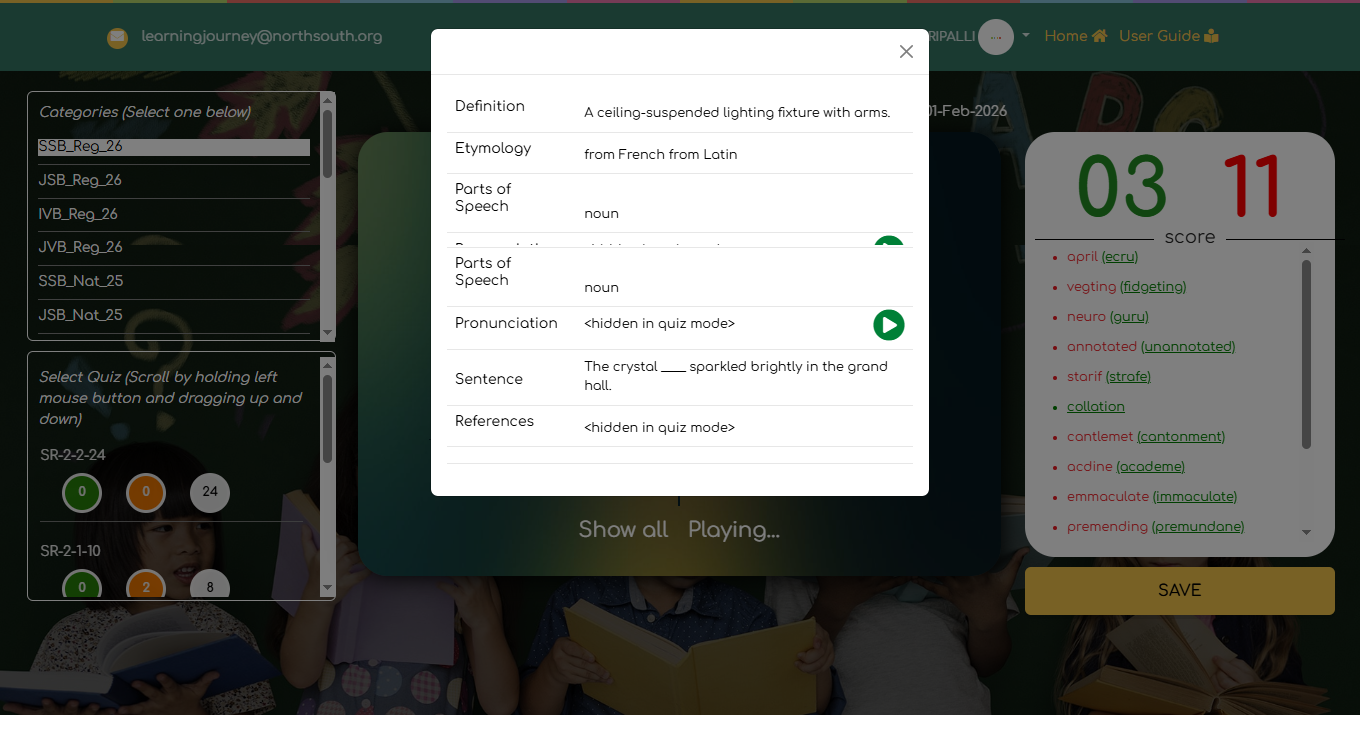
The Show All option is used to display the complete vocabulary details for all words in the selected quiz. It helps users review and understand words after attempting the quiz.
The Play All option is used to automatically play the pronunciation audio for all vocabulary words in the selected quiz. It helps users improve listening, pronunciation, and word recognition skills.
My Quizzes
Filters Section:
These filters help users quickly locate specific quizzes.
-
Category Dropdown
-
Allows filtering quizzes by category.
-
-
Subcategory Field
-
Allows further filtering within a selected category.
-
These filters help users quickly locate specific quizzes.
Saved Quiz Cards:
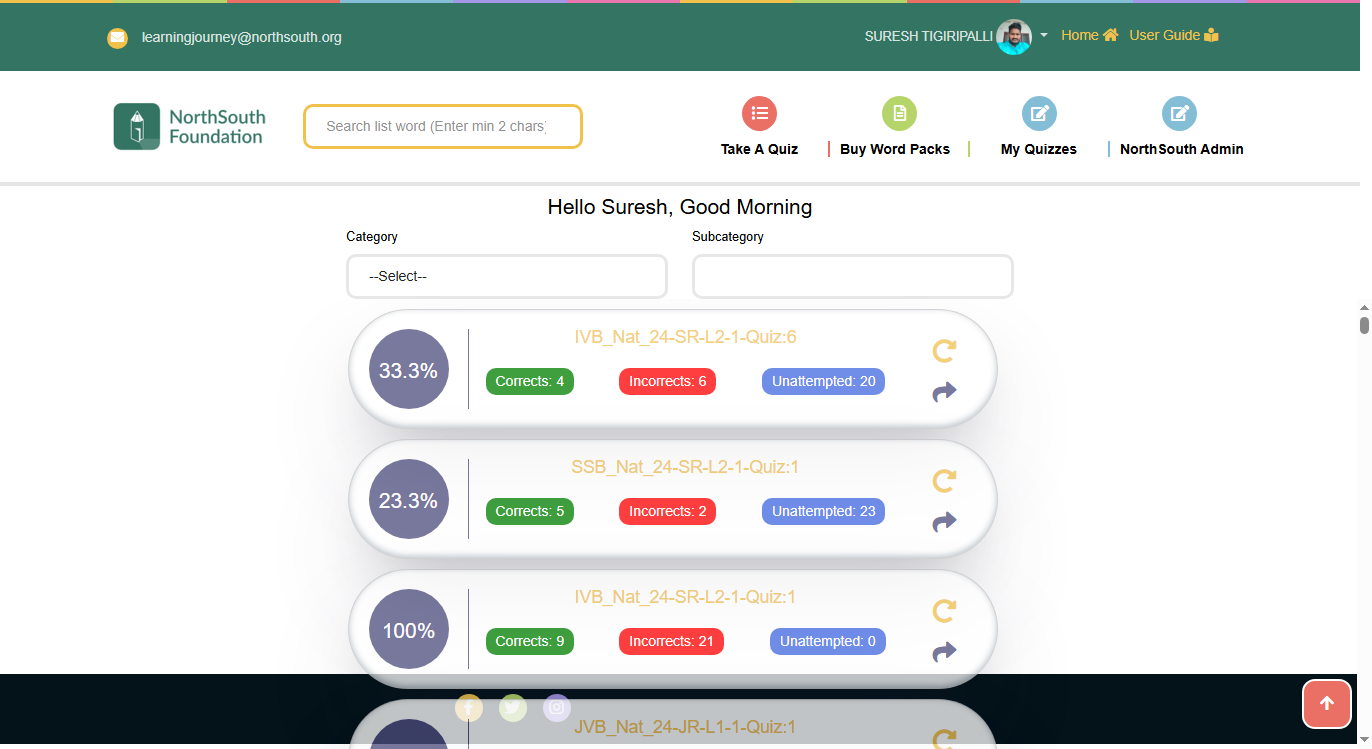
Each quiz is displayed as an individual quiz card with the following details:
-
Performance Percentage
- Shown as a circular indicator (e.g., 33.3%, 23.3%).
- epresents the score achieved in that quiz.
-
Quiz Identifier
- Displays quiz name and level Example: IVB_Nat_24-SR-L2-1-Quiz:6
Quiz Result Summary
Each card shows:
- Corrects (Green) – Number of correct answers Ex:Corrects: 4
- Incorrects (Red) – Number of incorrect answers Ex: Incorrects: 6
- Unattempted (Blue) – Number of questions not attemptedEx:Unattempted: 20
Action Levels:
-
Retry Icon (Circular Arrow)
- Allows the user to retake the quiz from the beginning.
- Resume / Continue Icon
- Allows the user to continue the quiz from where it was saved.
Profile OverView :
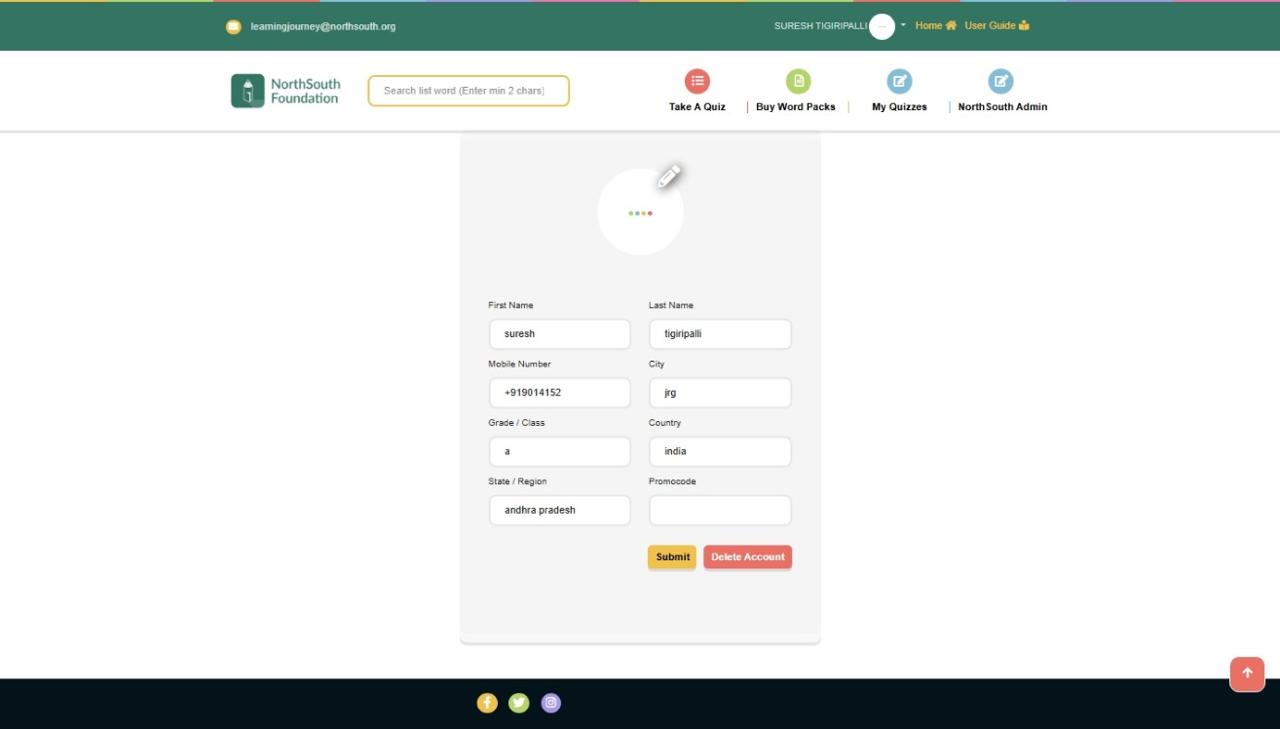
The User Profile Update page allows logged-in users to view and update their personal details associated with their NorthSouth Foundation Spelling account. Keeping this information up to date ensures accurate communication, personalized quizzes, and proper account management.
Action Buttons:
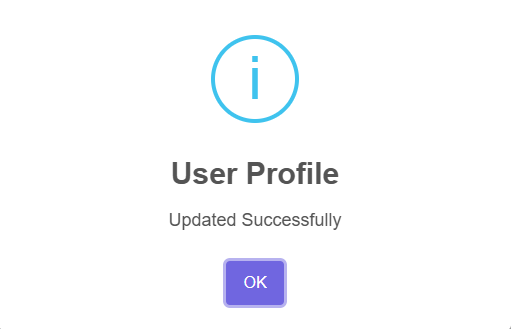
- Submit:Click Submit to save all changes.
- A confirmation message will appear if the update is successful.
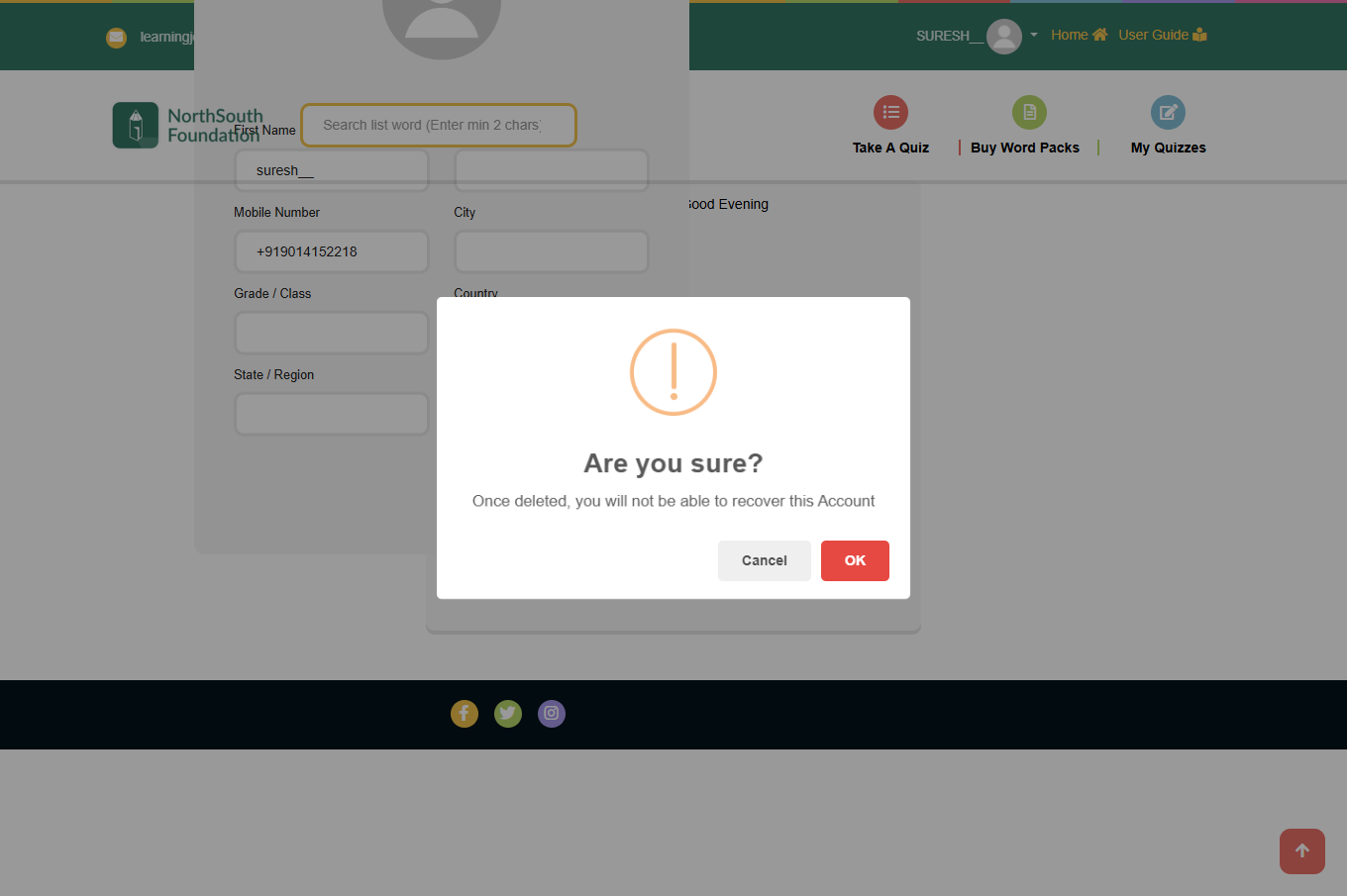
- Delete Account:lick Delete Account to permanently remove your account.
- This action is irreversible.
- All user data, quiz history, and subscriptions will be deleted.
Change Password:
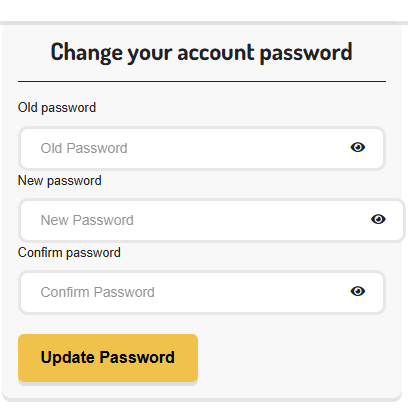
page allows users to securely update their account password.
- Old Password :Enter your current password,this field is required to verify your identity.
- New Password: Enter your new desired password, Choose a strong password for better security.
- Confirm Password: Re-enter the new password exactly as above,ensures there are no typing mistakes.
Update Password Button: Click Update Password to save the new password. A success message will be displayed once the password is updated
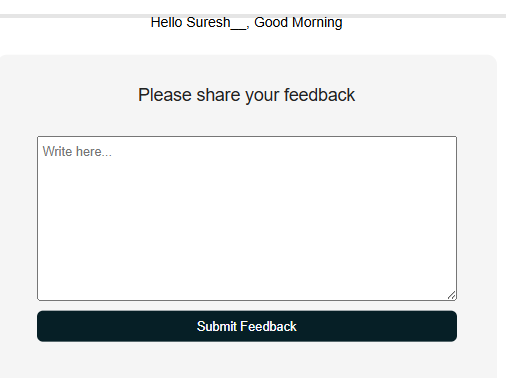
Write to us: The Feedback page allows users to share their comments, suggestions, or issues regarding the platform. User feedback helps improve features, usability, and overall experience.
Buy WordPacks:
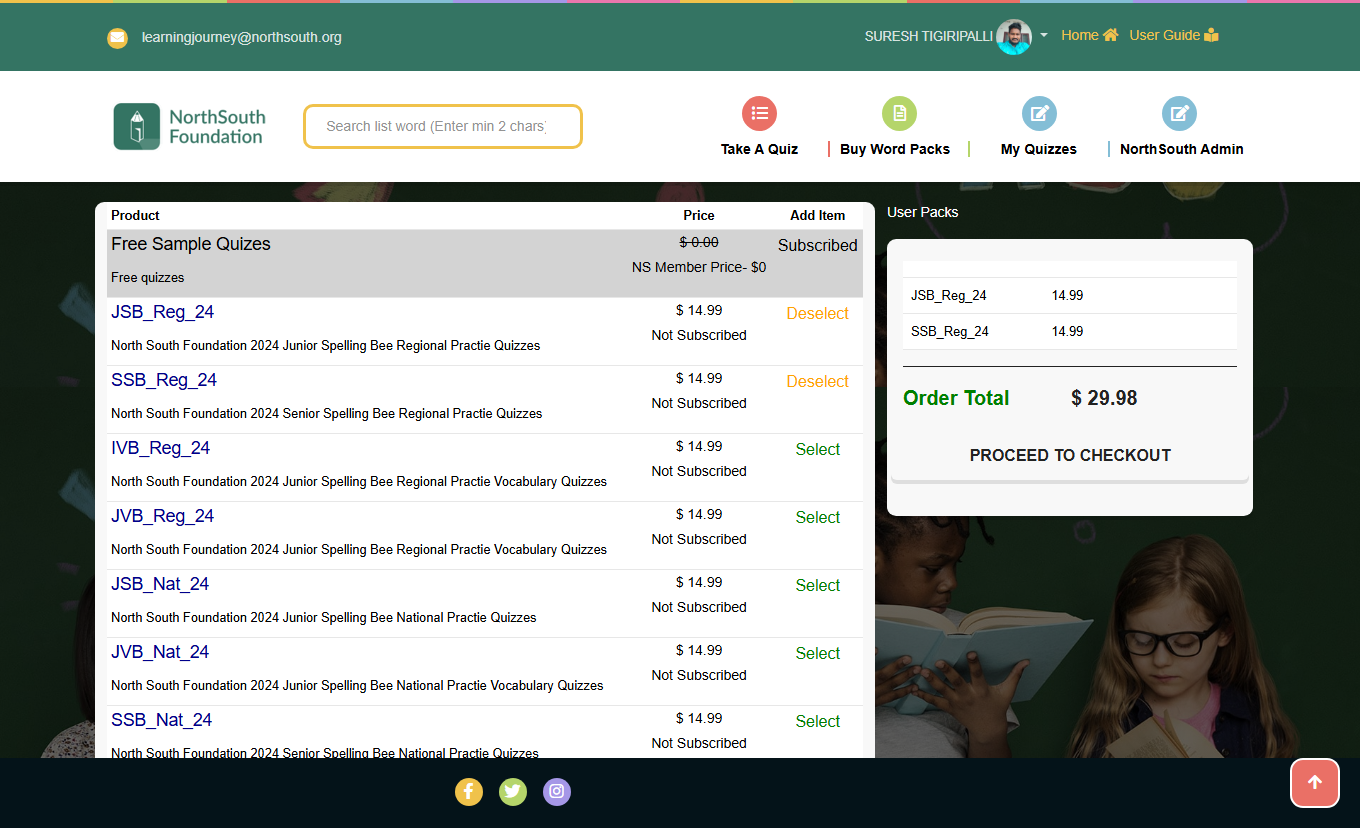
The Buy Word Packs screen allows users to view, select, and purchase available quiz and vocabulary packs. It also displays the subscription status of each pack and provides an order summary.
- Product
- Displays the name and description of the word pack.
- Example
- JSB_Reg_24 – Junior Spelling Bee Regional Practice Quizzes
- SSB_Nat_24 – Senior Spelling Bee National Practice Quizzes
- Price
- Shows the cost of each word pack.
- Example: $14.99
- For free packs, the price is displayed as $0.00.
- Add Item/Status
- Subscribed:Indicates the user already has access to the pack.
- Select: Allows the user to add the pack to the order for purchase.
- Not Subscribed: Indicates the pack is not yet purchased.
Column Description:
Free Sample Quizzes:
- Available at $0.00.
- Automatically marked as Subscribed.
- Accessible without any purchase.
User Packs / Order Summary Section
- Order Total Panel : Displays the total cost of selected word packs and Updates dynamically as users select or remove items.
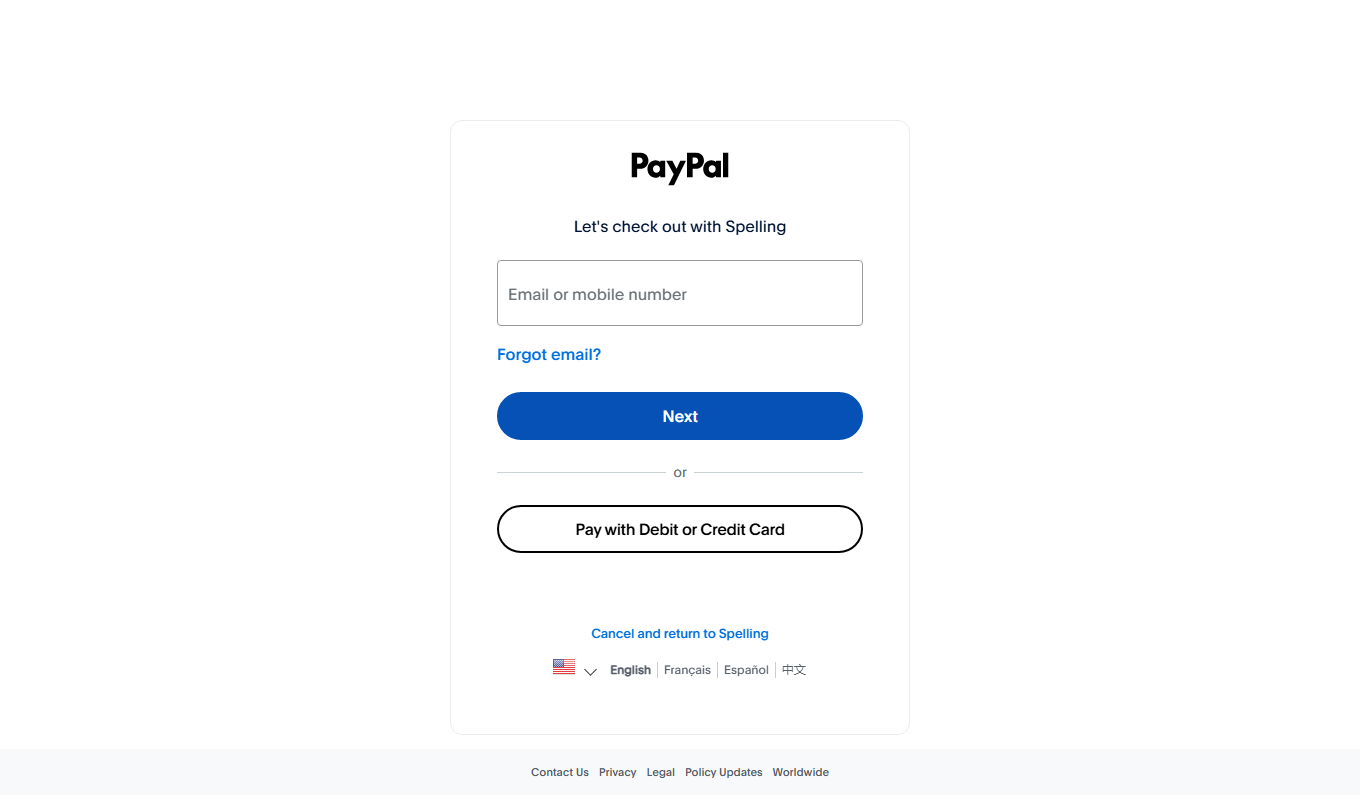
When we click on Proceed to Checkout we will get the screen like this.
This screen is displayed when the user chooses to complete the purchase using PayPal. It allows the user to either log in to an existing PayPal account or continue with debit/credit card payment without logging in.This screen is to authenticate paypal users and to provide an alternative payment option for non-paypal users
Login Section:
- Email or Mobile Number.
- Users must enter their registered PayPal email address or mobile number.
- This is required to identify the PayPal account.
-
Forgot Email?
- Allows users to recover their PayPal account email if forgotten.
-
Next Button
- Proceeds to the password entry screen after successful validation of the email or mobile number.
- Alternative Payment Options:
Pay with Debit/Credit Card
- Allows users to continue payment without logging into PayPal.
- Redirects to the secure card payment form.
-
Cancel and Return to Spelling
- Cancels the PayPal checkout process.
- Redirects the user back to the Spelling application without completing the payment.
Note:When i enter an email and click on next button or when i click on pay with credit or debit card it is redirecting to the next screen.
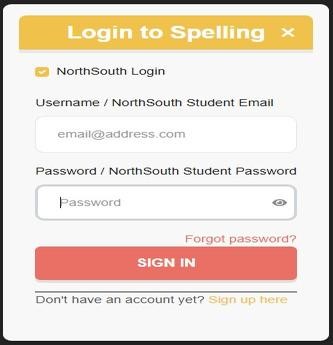
This screen allows users to complete a payment using a debit or credit card without logging in to a PayPal account. PayPal securely processes the transaction on behalf of the merchant.
-
Payment Summary:
- The total payable amount is displayed at the top-right corner (e.g., $29.98).
- The amount reflects the selected word pack(s) from the previous screen.
-
Pay with Debit or Credit Card :
- Users can pay directly using a debit or credit card.
- PayPal ensures that financial details are not shared with the merchant.
-
Supported Cards:
- Visa
- MasterCard
- American Express
- Discover
-
Contact Information
- Country/Region – Select the billing country.
- Email Address – Used for payment confirmation and receipt.
- Phone Type & Phone Number – Required for verification and security.
-
Billing Address Section: Required billing details included
- First Name
- Last Name
- Street Address
- Apartment / Suite (Optional)
- City
- State
- ZIP Code
-
Action Buttons:
- Processes the payment.
- Completes the order.
- Redirects the user back to the application after successful payment.
- Redirects the user to the PayPal login flow.
- Cancels the payment.
- Redirects the user back to the application without completing the transaction.
-
Create Account & Continue
-
Have a PayPal Account? Log In
-
Cancel and Return to Merchant